
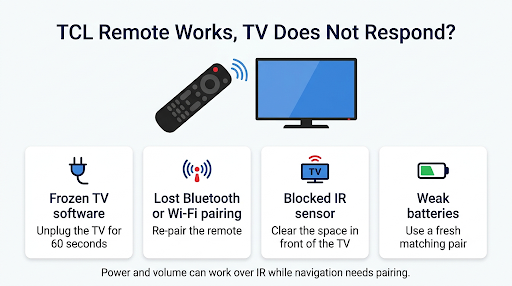
If your TCL remote lights up but the TV ignores it, the remote is usually fine. The problem is almost always one of three things: the TV’s software is frozen, the remote has lost its Bluetooth or Wi-Fi pairing, or something is blocking the TV’s IR sensor. A full 60-second power cycle and a quick re-pair fix most cases in under five minutes.
The exact fix depends on whether you own a TCL Google TV, Android TV, Roku TV, or Fire TV, because each one pairs its remote differently. This guide walks you through each platform, plus how to tell if the TV’s sensor or the remote itself has actually failed.
Quick Overview
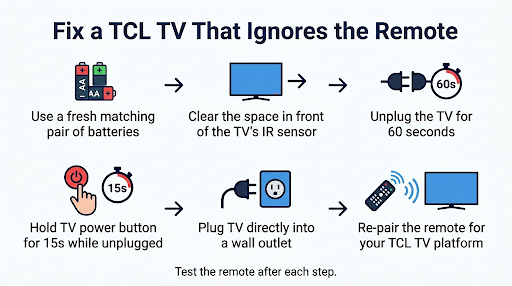
- Unplug the TV for 60 seconds. While it’s unplugged, hold the TV’s physical power button for about 15 seconds. Then plug it straight into a wall outlet.
- Put in a fresh pair of matching batteries. Weak batteries can still light the LED but not send a strong enough signal.
- Clear the space in front of the TV. Soundbars, decor, and center speakers often block the IR sensor on the bottom edge.
- Re-pair the remote:
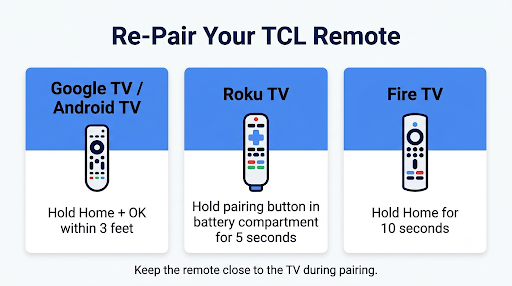
- Google TV / Android TV: hold Home + OK within 3 feet of the TV.
- Roku TV: hold the pairing button in the battery compartment about 5 seconds.
- Fire TV: hold Home for about 10 seconds.
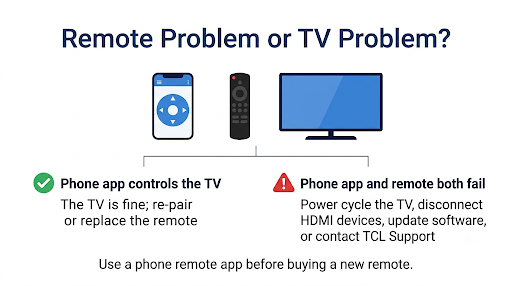
- Test with a phone app. If the app works but the remote doesn’t, the remote is the problem. If neither works, the TV is.
Why Does My TCL TV Not Respond When the Remote Is Working?
A working remote only proves the remote is sending a signal. It doesn’t prove the TV is receiving or processing it. Most TCL remotes talk to the TV in two ways at once, and either link can break on its own.
TCL explains that its Android TV remote uses both infrared and Bluetooth. The IR signal handles basic functions and needs a clear line of sight. Bluetooth (or Wi-Fi on Roku voice remotes) handles navigation, voice, and pointing-free use.
Here are the most common reasons the TV goes deaf to a working remote:
- Frozen TV software. The TV looks on, but the operating system has hung and ignores every input.
- Lost pairing. Bluetooth and Roku voice remotes can drop their connection after a software update, a factory reset, a battery change, or a power outage.
- Blocked IR sensor. A soundbar placed tight against the screen is the classic culprit.
- Weak batteries. The LED still blinks, but the signal is too weak to reach the TV or hold a Bluetooth link.
- Wrong or incompatible remote. A replacement or universal remote may only handle IR and skip Bluetooth features.
- Connected devices. An HDMI device, soundbar, or cable box can grab control through HDMI-CEC or keep the TV stuck on an input.
- Faulty IR receiver. Less common, but possible if the TV responds to its own buttons and apps but never to any IR remote.
How Do You Know Which Problem You Have?
Match what you see to the table below. It saves you from trying every fix blindly.
| What you notice | Most likely cause | Best first fix |
| Remote light blinks, TV does nothing at all | Frozen TV or blocked IR sensor | 60-second power cycle, clear the sensor |
| Only Power and Volume work | Bluetooth or Wi-Fi pairing lost (IR still works) | Re-pair the remote |
| Remote works only when you stand close | Weak batteries or partial blockage | New batteries, remove obstructions |
| Voice button does nothing, other buttons work | Bluetooth pairing issue | Re-pair the remote |
| Remote stopped working after a factory reset or update | Pairing was wiped | Re-pair during or after setup |
| Phone app works, physical remote doesn’t | Remote fault or pairing | Re-pair, then replace the remote |
| Neither app nor remote works, TV buttons do | TV software hang or IR receiver issue | Power cycle, disconnect HDMI devices, update, contact TCL |
| Nothing works, including the TV’s own button | Power or hardware problem | Check outlet, power cycle, contact TCL support |
How Do You Check If the TCL Remote Is Really Sending a Signal?
Use your phone camera. Infrared light is invisible to your eyes but most phone cameras can see it.
- Open your phone’s camera. Use the front-facing (selfie) camera, because many rear cameras filter out IR light.
- Point the top of the remote at the lens from a few inches away.
- Press and hold the Power or Volume button.
- Look for a flickering light on the phone screen.
If you see a flicker, the remote is sending IR and the problem is on the TV side. If you see nothing, replace the batteries and test again. No flicker with fresh batteries usually means the remote is faulty.
One catch: Roku voice and enhanced remotes send most commands over Wi-Fi, not IR. A camera test only checks the IR part, so a flicker doesn’t prove the wireless link is working.
How Do You Power Cycle a TCL TV That Won’t Respond?
A proper power cycle is the single most effective fix when the remote works but the TV is stuck. Pressing Power on the remote only puts the TV in standby. It doesn’t clear a frozen system.
TCL’s own guide to a TV that will not power on uses the same steps for Google TV, Roku TV, and Fire TV models:
- Unplug the TV from the wall.
- Leave it unplugged for at least 60 seconds. A quick unplug and replug often isn’t enough.
- While it’s unplugged, press and hold the TV’s physical power button for about 15 seconds to drain leftover power.
- Plug the TV directly into a wall outlet, not a power strip, surge protector, or smart plug.
- Turn it on and test the remote right away.
While the TV is off, take the batteries out of the remote too. Put them back once the TCL logo or home screen appears. This restarts both devices at the same time.
Where Is the Power Button on a TCL TV?
On most TCL models, the physical button sits under the center of the TV, just behind the TCL logo. Run your fingers along the bottom edge. Some models put it on the back near the right side or along a side panel. On joystick-style buttons, a short press may open a small menu, so hold it longer to power off.
How Do You Fix a TCL Google TV or Android TV That Ignores the Remote?
On Google TV and Android TV models, the fix is usually re-pairing the Bluetooth link. TCL notes that some remotes can still send Power without being fully paired, which is why “only the power button works” is such a common symptom.
Re-pair the remote
- Turn the TV on.
- Stand within 3 feet of the TV.
- Press and hold Home and OK together.
- Keep holding until a pairing animation or prompt appears, then follow the on-screen steps.
If the prompt never shows up, check our guide on what to do when the Home and OK pairing method fails. Some newer Google TV remotes respond to Back + Home instead, so it’s worth trying both combos.
Pair from the menu if you can navigate
If you can get around with the TV’s buttons, a USB keyboard, or the phone app, go to Settings > Remotes & Accessories > Pair remote or accessory. You can also forget the old remote there and pair it as new.
Restart Android TV from the menu
On older TCL Android TVs, go to Settings > More Settings > Device Preferences > About > Restart. Remove the remote batteries before restarting and reinsert them when the TCL logo appears.
How Do You Fix a TCL Roku TV That Won’t Respond to the Remote?
First, figure out which Roku remote you have. Open the battery cover and look for a small pairing button.
- No pairing button: It’s a simple IR remote. It needs a clear line of sight and never needs pairing.
- Pairing button present: It’s a voice or enhanced remote. It connects wirelessly and does not need to be pointed at the TV, but it must stay paired.
Fix a simple IR Roku remote
Point it straight at the front of the TV, move closer, and remove anything in front of the bottom edge. TCL’s Roku TV remote troubleshooting page points out that if there’s a clear line of sight and the TV still won’t react, the IR receiver on the TV could be the issue.
Re-pair a Roku voice or enhanced remote
- Take out the remote batteries.
- Restart the TV using its physical button, or unplug it for 60 seconds.
- When the home screen appears, put the batteries back in.
- Press and hold the pairing button for about 5 seconds, until the status light starts flashing.
- Keep the remote close to the TV and wait for the pairing dialog on screen.
Once pairing finishes, the TV shows the remote’s battery status. If the light never flashes, see our fix for a TCL Roku remote light that won’t flash during pairing. If it flashes but the TV never connects, our guide to a TCL Roku TV remote that won’t pair covers the deeper causes.
Tip: Some Roku voice remotes don’t have a pairing button. On those, Roku’s community moderators suggest holding Back + Home for 5 seconds until the light flashes.
How Do You Fix a TCL Fire TV That Ignores the Remote?
Fire TV remotes pair over Bluetooth, usually automatically. If the TV stops responding, re-pair or reset the remote.
Re-pair the Fire TV remote
- Move within 10 feet of the TV.
- Press and hold Home for about 10 seconds.
- Watch for a pairing message on screen. A blue blinking LED means it paired.
Reset the Fire TV remote
TCL’s Fire TV remote troubleshooting steps describe this reset:
- Unplug the TV and wait 60 seconds.
- Press and hold Left, Menu, and Back together for 12 seconds.
- Release and wait 5 seconds.
- Remove the remote batteries.
- Plug the TV back in and wait for the screen saying the remote can’t be detected.
- Put the batteries back in and press Home.
Fire TV supports a limited number of paired controllers. If you have seven already, remove one before pairing again. If this happens right after a reset, our guide on a TCL Fire TV remote that won’t pair during setup walks through the setup screen step by step.
Can You Control a TCL TV With Your Phone While You Troubleshoot?
Yes, and it’s the fastest way to tell whether the remote or the TV is at fault. Make sure your phone and TV are on the same Wi-Fi network.
| TCL TV platform | Phone app to use |
| Google TV | Google TV app (built-in remote feature) or TCL Home |
| Android TV | Android TV Remote Control app or TCL Home |
| Roku TV | The Roku mobile app |
| Fire TV | Amazon Fire TV app |
If the app controls the TV, the TV is working and the physical remote needs re-pairing or replacing. If the app can’t control it either, the TV’s software is likely hung, so go back to the power cycle and the device checks below.
What If the TV Still Doesn’t Respond After Re-Pairing?
Work through these less obvious causes. Top-ranking guides often skip them, but they solve a lot of stubborn cases.
Disconnect HDMI devices and soundbars
Unplug every HDMI device, soundbar, game console, streaming stick, and USB drive. Power cycle the TV and test the remote. If it works, reconnect devices one at a time to find the culprit. A soundbar or cable box using HDMI-CEC can sometimes take over control or keep the TV on the wrong input.
Check for light interference
Strong direct sunlight or a bright lamp aimed at the bottom of the screen can drown out the IR signal. Close the blinds or turn off the light and try again.
Confirm you have the right remote
Replacement and universal remotes may cover only IR basics and skip Bluetooth features. For Roku models, look for a remote that’s specifically compatible with TCL Roku TVs. Not every Roku remote works with every Roku TV.
Update the TV software
Remote bugs sometimes appear after an update and get fixed in the next one. Use the phone app or the TV’s buttons to open Settings and check for a system update.
Factory reset as a last resort
A factory reset erases your apps, accounts, and settings. It also wipes the remote pairing, so be ready to pair again during setup. Only use this step if the TV keeps freezing even after power cycles.
What Mistakes Make This Problem Worse?
- Unplugging for only a few seconds. TCL specifically calls for a full 60 seconds.
- Mixing old and new batteries, or mixing battery brands and types.
- Pairing from across the room. Google TV and Android TV remotes need to be within about 3 feet.
- Plugging into a surge protector while testing. A failing strip can cause power and standby glitches that look like remote problems.
- Factory resetting too early. It rarely fixes a remote problem and adds a new pairing step.
- Ordering a new remote before testing with an app. The app test tells you if you even need one.
When Should You Contact TCL Support?
Contact TCL if the TV doesn’t respond to the remote, the phone app, or its own physical button after a full power cycle. Also reach out if the standby light keeps flashing, the TV shuts off right after turning on, or you hear clicking or buzzing.
Stop using the TV and unplug it immediately if you notice smoke, sparks, a burning smell, or liquid inside.
Have your model number, serial number, purchase date, and a list of what you already tried. That speeds up a warranty claim or a replacement remote request.
Frequently Asked Questions
Why does only the power button work on my TCL remote?
Power and Volume usually travel over IR, which works without pairing. Navigation and voice need a Bluetooth or Wi-Fi link. When only Power works, the remote has lost that link, so re-pairing almost always fixes it.
Why did my TCL remote stop working after I changed the batteries?
Swapping batteries can drop the Bluetooth connection on some voice remotes. Check that the batteries face the right way, then re-pair. If the remote worked fine with the old batteries, the new ones may be a weak or mismatched set.
Can a TCL TV’s IR sensor stop working?
Yes, though it’s uncommon. If the camera test shows the remote sending IR, the path is clear, and the TV still ignores every IR remote while the phone app works, the sensor or its board may be faulty. That’s a repair or warranty issue for TCL.
Why does my TCL TV respond slowly or only sometimes?
Intermittent response points to low batteries, a partial blockage, or an unstable pairing. A TV that’s also slow in menus may have too many background apps or low storage. A full restart usually brings both back to normal.
Will a universal remote work if my TCL remote won’t?
A universal IR remote can handle power, volume, inputs, and basic navigation on most TCL TVs. It won’t support voice search or Bluetooth-only features. It’s a fair backup while you wait for an official replacement.
Does my TCL TV need Wi-Fi for the remote to work?
Standard IR and Bluetooth remotes don’t need Wi-Fi. Roku voice and enhanced remotes connect wirelessly to the TV but don’t need your internet connection to be up. Phone remote apps do need the phone and TV on the same Wi-Fi network.
What Should You Do Next?
Start with the full 60-second power cycle and fresh batteries, since that clears most frozen-TV cases. If only some buttons work, re-pair the remote using your platform’s method. Then use a phone app to confirm whether the remote or the TV is the real problem.
If the app works, re-pair or replace the remote. If nothing reaches the TV, disconnect your HDMI devices, update the software, and contact TCL support with your model number ready.