
If your LG Magic Remote pointer disappears, shake the remote side to side or roll the scroll wheel first. The pointer hides on its own after a few seconds of no movement, and it also hides when you press an arrow key. If shaking does nothing, the usual causes are weak batteries, Audio Guidance being turned on, or a remote that has lost its connection to the TV.
The good news is that a missing cursor almost never means a dead remote. This guide walks you through every fix in the right order, from the 5-second checks to re-pairing, settings, and a reset, so you can tell exactly where the problem is.
Quick Overview
- Wake it up: Shake the remote left and right, roll the wheel, or press the Wheel (OK) button.
- Swap the batteries: Use two fresh AA batteries. The pointer is often the first thing to fail on low power.
- Turn off Audio Guidance: Settings > All Settings > General > Accessibility > Audio Guidance > Off (2021 and newer TVs).
- Re-pair the remote: Hold Home + Back for 5 seconds, then point at the TV and press the Wheel (OK) button.
- Power cycle the TV: Unplug it for at least 60 seconds. Turn off Quick Start+ if the problem keeps coming back.
- Last resort: Update the TV software or reset it to factory settings.
Why Does the LG Magic Remote Pointer Disappear?
The pointer disappears for two kinds of reasons: normal behavior that LG designed on purpose, and real problems that stop the pointer from working.
Normal reasons (nothing is broken)
- Idle timeout: LG’s own manual says that if the pointer has not been used for a while, it disappears. Shaking the remote brings it back.
- You pressed an arrow key: The pointer hides when you press up, down, left, or right, and the remote switches to working like a regular button remote.
- The app uses button navigation: Some streaming apps are built around arrow-key menus, so the pointer may not show up or may not respond inside them.
Problem reasons (something needs fixing)
- Low batteries: LG notes the pointer may not appear when the remote’s battery is low, even if other buttons still respond.
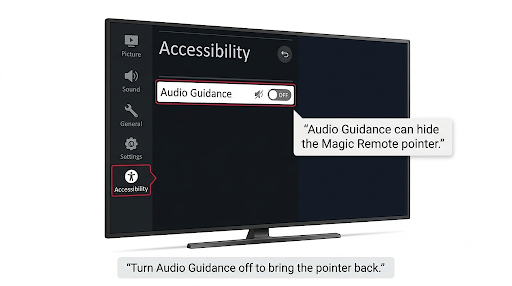
- Audio Guidance is on: This accessibility feature removes the pointer and reads the menu out loud. Holding the Mute button for about 3 seconds turns it on, so many people enable it by accident.
- Lost Bluetooth connection: The pointer runs over a wireless radio link. If that link drops, only basic buttons like Power and Volume keep working.
- Wireless interference: A Wi-Fi router or other electronics placed too close to the TV can knock the remote off.
- Software glitch: A frozen system process, a recent webOS update, or Quick Start+ keeping the TV in standby.
- Wrong remote: A standard LG remote or a cheap infrared-only replacement has no pointer at all.
- Hardware fault: A failing motion sensor or Bluetooth module inside the remote.
What Do Your Symptoms Tell You?
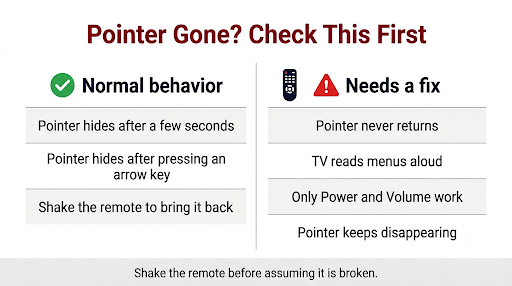
Before you start pressing button combos, look at what still works. It points straight to the cause and saves time.
| What you see | Most likely cause | Fix to try first |
| Pointer comes back when you shake the remote | Normal idle timeout or arrow key press | Nothing to fix. Adjust pointer settings if it bugs you. |
| No pointer, and the TV is reading menus aloud | Audio Guidance is on | Turn off Audio Guidance |
| No pointer, but Power and Volume still work | Remote disconnected from the TV | Re-pair with Home + Back |
| No pointer and no buttons work at all | Dead batteries or remote hardware | New batteries, then contact LG |
| Pointer works in the home screen but not in one app | App design or app glitch | Use arrow keys, or reinstall the app |
| Pointer keeps disappearing every few days | Standby glitch, interference, or weak batteries | Turn off Quick Start+, move the router, new batteries |
| Pointer gone right after a software update | Pairing or firmware issue | Re-pair, then power cycle the TV |
How Do You Get the Pointer Back on an LG Magic Remote?
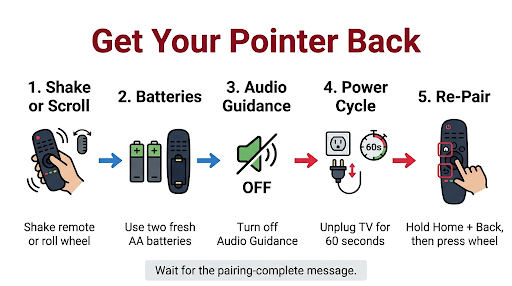
Work through these fixes in order. Most people get the cursor back by step 2 or 4.
1. Shake the remote or roll the scroll wheel
Point the remote at the TV and gently shake it left and right. You can also roll the wheel up or down or press the Wheel (OK) button once. If the pointer pops right back, it was only hidden by the idle timer or an arrow key press.
If rolling the wheel does nothing at all, the wheel itself might be the issue. Our guide on the LG Magic Remote scroll wheel not working covers that separately.
2. Replace the batteries with fresh ones
The Magic Remote uses two AA batteries, and its motion sensor and Bluetooth radio need more power than the regular buttons. That is why the pointer can vanish while Volume still works.
- Use brand-new batteries, not ones pulled from another device.
- Check that the + and – ends match the markings in the battery slot.
- Look for corrosion or dirt on the metal contacts. Wipe them gently with a dry cloth or a cotton swab with a little isopropyl alcohol.
If the remote still won’t connect after a battery swap, see our fix for an LG Magic Remote not pairing after a battery change.
3. Turn off Audio Guidance
If your TV talks to you when you move through menus, this is your answer. LG removes the pointer while Audio Guidance is on so the voice doesn’t read out every item the cursor passes over. Shaking the remote will not bring the pointer back in this mode.
Use the arrow keys and OK button to reach the setting:
| TV model year | Menu path |
| 2021 and newer (webOS 6.0, 22, 23, 24, 25) | Settings > All Settings > General > Accessibility > Audio Guidance > Off |
| 2020 and older (webOS 5.0 and earlier) | Settings > All Settings > Accessibility > Audio Guidance > Off |
LG’s help library also suggests pressing the Settings or Mute button three times in a row as a shortcut toward accessibility options on supported models. Once Audio Guidance is off, the voice stops and the pointer returns. To avoid turning it on again, tap Mute instead of holding it.
4. Unpair and re-pair the Magic Remote
If Power and Volume work but the cursor won’t show, the remote has most likely lost its wireless link. This is the fix most LG owners on Reddit and the LG webOS forum swear by.
- Turn on the TV and wait about 20 seconds so it finishes starting up.
- Press and hold Home and Back together for about 5 seconds.
- Let go when the light on the remote blinks red three times or the TV shows a “disconnected” message.
- Point the remote at the TV and press the Wheel (OK) button.
- Wait for the “pairing complete” or “registered” message. The pointer should appear.
Note: Some older Magic Remotes released before 2018 use a different button combination to unpair. If Home + Back does nothing on an older TV, check the owner’s manual for your model.
5. Move the Wi-Fi router and other electronics away from the TV
The Magic Remote talks to the TV over the 2.4 GHz band, the same band many routers use. LG recommends keeping your wireless router at least 20 cm (8 inches) from the TV. Also check for streaming sticks, game consoles, or wireless speakers sitting right against the TV’s lower edge, where the receiver usually is.
6. Power cycle the TV the right way
Pressing Power on the remote usually puts an LG TV in standby instead of shutting it down. A real power cycle clears temporary glitches that block the pointer.
- Unplug the TV from the wall outlet.
- Wait at least 60 seconds. For a deeper reset, press and hold the power button on the TV itself for 30 seconds while it is unplugged, then leave it unplugged for a few minutes.
- Plug it back in, turn it on, and test the pointer.
7. Turn off Quick Start+
Quick Start+ keeps the TV in standby mode so it turns on faster. The downside is that the system rarely gets a clean restart, and some owners report that the pointer only comes back after a full power cycle. Turning it off is a common fix when the cursor keeps disappearing every few days.
- webOS 22 and newer: Settings > All Settings > General > Devices > TV Management > Quick Start+ > Off
- Some earlier models: Settings > All Settings > General > System > Additional Settings > Quick Start+
Menu names shift a little between model years, so look under General if you don’t see it in these exact spots.
8. Update the TV software
A webOS update can fix remote bugs, but sometimes it is the reason the pointer stopped working. Go to Settings > All Settings > Support > Software Update (on some models it sits under General > About This TV) and install anything available. If the trouble started right after an update, our guide to an LG TV remote not working after a software update goes deeper.
9. Reset the TV to factory settings (last resort)
LG suggests a reset only when the pointer still won’t appear and just some buttons work. A reset erases your apps, Wi-Fi password, channel settings, and app logins like Netflix and YouTube.
| TV model year | Reset path |
| 2021 to 2024 (webOS 6.0 to webOS 24) | Settings > All Settings > General > System > Reset to Initial Settings |
| 2020 (webOS 5.0) | Settings > All Settings > Support > Reset to Initial Settings |
| 2019 and older (webOS 4.5 and earlier) | Settings > All Settings > General > Reset to Initial Settings |
If the pointer still doesn’t work after a reset, LG says to contact support, because the remote or the TV’s receiver may need service.
Why Does the Pointer Disappear Inside Netflix, YouTube, or Other Apps?
If the pointer works on the home screen but vanishes inside one app, the app is usually the cause, not your remote. Many TV apps are designed mainly for arrow-key navigation, and app updates can change how they handle the pointer.
- Press Home and check whether the pointer appears on the webOS home screen. If it does, your remote is fine.
- Use the arrow keys and OK button inside that app.
- If the pointer used to work in that app and suddenly stopped, uninstall and reinstall the app.
- Check for both an app update and a TV software update.
Why Does the Pointer Show Up but Not Move?
A pointer that is visible but frozen or drifting is a different problem from one that is missing. LG’s manual says that if the pointer is not responding smoothly, you can reset it by moving it all the way to the edge of the screen. Shaking the remote left and right can also re-center it. If it is still stuck, read our full guide on the LG Magic Remote cursor not moving.
Can You Change How Long the Pointer Stays on Screen?
No. webOS does not let you set the pointer timeout, and you can’t turn the pointer off permanently. You can, however, change how sensitive it is and how big it looks, which helps if it keeps popping up during movies or is hard to spot.
- Most 2018 and newer TVs: Settings > All Settings > General > System > Additional Settings > Pointer Options
- Older TVs: Settings > Accessibility > Pointer Options
Inside Pointer Options you will find Tracking Speed and Pointer Size. A slower tracking speed makes the cursor less likely to wake up when you bump the remote on the couch. A larger size makes it easier to find on a big OLED or QNED screen.
Is Your Remote Even Compatible With a Pointer?
This is the gap most guides miss. If you bought a replacement remote and it never showed a pointer from day one, the remote may not support it.
- Standard LG remotes (the slim button-only ones) have no pointer. That is normal, not a fault.
- Cheap “Magic Remote” lookalikes are often infrared-only. They control basic functions but have no Bluetooth, so no pointer and no voice control.
- Model year matters. LG states that its 2025 AI Magic Remote works only with 2023, 2024, and 2025 LG TVs. Older remotes like the MR21GA, MR22GN, MR23GN, and MR24GN each cover a specific range of model years.
Check the model number in the battery compartment and compare it with LG’s compatibility list for your TV before buying a replacement.
Common Mistakes That Make the Problem Worse
- Holding Mute too long. This turns on Audio Guidance and hides the pointer.
- Reusing half-dead batteries. They may run the buttons but not the pointer.
- Pressing the pairing combo before the TV fully boots. Give it about 20 seconds after power-on.
- Jumping straight to a factory reset. You lose all your app logins, and most pointer problems are fixed earlier in the list.
- Buying a new remote too soon. A de-paired remote looks exactly like a broken one.
How Can You Control the TV While the Pointer Is Missing?
You still have options while you troubleshoot:
- Arrow keys and OK: They work in every menu, including the settings you need for these fixes.
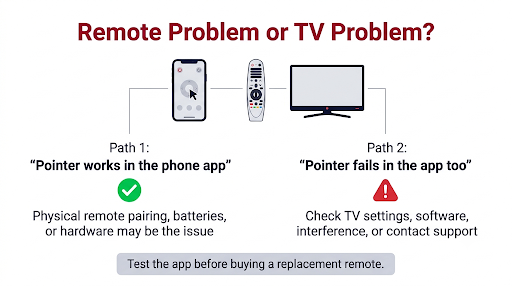
- LG ThinQ app: The official app for Android and iPhone can act as a remote with an on-screen touchpad once your phone and TV are on the same Wi-Fi network.
- Buttons on the TV: Most LG TVs have a small joystick or button under the bottom center edge for power, input, and basic menus.
When Should You Contact LG Support?
Reach out to LG if none of the remote buttons work with brand-new batteries, if the pointer won’t come back after re-pairing and a reset, or if the remote has water or drop damage. Have your TV model number (on the back label or under Settings > Support) and your remote model number ready. You can start with LG’s official guide on fixing the Magic Remote pointer not appearing, which links to chat and repair requests.
FAQs
Why does my LG TV pointer disappear after a few seconds?
That is built-in behavior. The pointer auto-hides when the remote sits still so it doesn’t cover what you are watching. Pick up the remote and move it, and it should appear again right away.
Why does shaking the remote not bring the pointer back?
The two most common reasons are Audio Guidance being on, or the remote being unpaired. If the TV is speaking menu items, turn off Audio Guidance. If it is silent and only Power and Volume work, re-pair with Home + Back.
Why do only the power and volume buttons work on my LG Magic Remote?
Power and Volume can work over infrared, while the pointer, wheel, and smart buttons need the Bluetooth connection. When just those two work, the wireless link has dropped and the remote needs to be registered again.
Does an LG TV factory reset fix the missing pointer?
Sometimes, when a software glitch is behind it. It won’t fix weak batteries, a wrong remote, or hardware damage, and it wipes your apps and logins, so try every other step first.
Can I use a 2024 or 2025 Magic Remote on an older LG TV?
Not always. Newer Magic Remotes are backward compatible only with certain years, and LG’s 2025 AI Magic Remote is limited to 2023 to 2025 TVs. Some new buttons may also do nothing on an older set even if the pointer works.
Is it the remote or the TV when the pointer is gone?
Try pairing a second Magic Remote if you have one, or use the LG ThinQ app’s touchpad. If the app pointer works fine, the problem is your physical remote. If neither shows a pointer, the issue is on the TV side.
Final Recommendation
Start simple: shake the remote, then put in two fresh AA batteries. If the TV is talking, turn off Audio Guidance. If it is silent and only Power and Volume respond, hold Home + Back for 5 seconds and re-pair with the Wheel button. That covers the vast majority of missing pointer cases. If the cursor keeps vanishing every few days, turn off Quick Start+ and keep your router at least 8 inches from the TV. Save the factory reset and a new remote purchase for when everything else has failed.