
If your LG TV remote stopped working after a software update, the fix is usually quick: unplug the TV for 60 seconds, then unpair and re-pair the Magic Remote. Updates often break the remote’s pairing link, leave a glitch in memory, or reset settings like SIMPLINK (HDMI-CEC). A full power cycle and a fresh pairing clear most of these problems in under five minutes.
This guide walks you through every fix in the right order, from the 30-second basics to the deeper resets. It covers the Magic Remote, the newer AI Magic Remote, and the standard IR remote, plus what to do if only some buttons work or the remote won’t control your soundbar or cable box anymore.
Quick Overview
- Power drain the TV: Unplug it from the wall for 60 seconds, then plug it back in.
- Check the batteries: Press any button. The remote’s light should turn on. If it doesn’t, replace the batteries.
- Unpair the Magic Remote: Hold BACK + Settings (gear) for 5 seconds until the light blinks. On many older remotes, HOME + BACK does the same thing.
- Re-pair it: Wait about 20 seconds after the TV turns on, point the remote at the screen, and press the scroll wheel (OK).
- Check SIMPLINK (HDMI-CEC): Turn it off and back on if the remote no longer controls your soundbar, Roku, Fire Stick, or cable box.
- Install the next update: Use the LG ThinQ app as a temporary remote and check Settings > All Settings > Support > Software Update.
- Factory reset the TV only if nothing else works.
Why Does an LG TV Remote Stop Working After a Software Update?
Most of the time, the update didn’t break the remote itself. It changed something on the TV side. The remote is fine, but the TV no longer recognizes it or no longer passes its commands along correctly.
Here are the most common causes:
- Lost pairing: The Magic Remote talks to the TV using radio frequency (RF), like a wireless mouse. An update can wipe or corrupt that pairing record, so the TV ignores the remote. This is why the pointer often disappears after an update.
- Post-update glitch: Many LG TVs never fully shut down when you press Power. They go into a deep standby. If the update left a bug in memory, it stays there until you cut power completely.
- Reset settings: Updates can flip SIMPLINK (LG’s name for HDMI-CEC), Universal Control, or input settings back to default. That’s why your LG remote might control the TV fine but stop working with your soundbar, Roku, Apple TV, or cable box.
- A buggy firmware version: Sometimes the update itself has a bug. Owners in the LG OLED community on Reddit, for example, reported the G4’s power button on the Magic Remote stopping working after one 2024 firmware release, which LG later addressed in newer versions.
- Weak batteries showing up at the wrong time: An update often prompts a reboot and a re-handshake with the remote. Batteries that were barely hanging on can fail right at that moment, which makes the update look guilty when it isn’t.
What Type of LG Remote Do You Have?
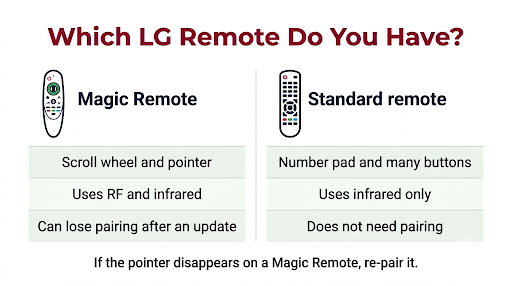
The right fix depends on your remote. Check this first, because standard remotes don’t pair at all.
| Remote type | How to recognize it | How it connects | Can an update unpair it? |
| Magic Remote (2017 to 2024 style) | Scroll wheel in the middle, on-screen pointer, voice/mic button | RF (plus IR for power and some buttons) | Yes, very common |
| AI Magic Remote (2025 and newer) | Scroll wheel, AI button, Home Hub and Quick Settings buttons | RF (plus IR) | Yes |
| Standard LG remote | No scroll wheel, no pointer, usually long with a number pad | Infrared (IR) only | No. Focus on batteries, IR sensor, and TV glitches |
Tip: If your Magic Remote’s power and volume buttons still work but the pointer and scroll wheel don’t, that’s the classic sign of a lost RF pairing. Power and volume can still go through IR, while the pointer needs RF.
How Do You Fix an LG TV Remote That Stopped Working After an Update?
Work through these fixes in order. Test the remote after each step so you know which one worked.
1. Do a Full Power Drain on the TV
This is the single most effective fix after an update. Pressing Power on the remote isn’t enough, because the TV only goes into standby.
- Unplug the TV’s power cord from the wall outlet, not just the power strip switch.
- If your TV has a physical power button (usually under the center of the bottom edge or behind the LG logo), press and hold it for 15 to 30 seconds while the TV is unplugged. This drains leftover charge.
- Wait at least 60 seconds.
- Plug the TV back in and turn it on.
- Wait about 20 seconds for webOS to finish loading before you test the remote.
Common mistake: Testing the remote the moment the LG logo appears. The TV isn’t ready to accept pairing until the home screen fully loads.
2. Check the Batteries and the Remote’s Light
Press any button on the remote. On a Magic Remote, the power button or the small LED should light up.
- No light at all: Install two fresh AA batteries (or the type your remote uses) and check that the + and minus ends match the markings.
- Light flickers or is dim: The batteries are weak. Replace both, not just one.
- Low battery message on the TV: Replace the batteries even if the remote still sort of works.
If the remote stopped working right after you changed batteries during or after the update, see our guide on fixing an LG Magic Remote that won’t pair after a battery change.
3. Test a Standard Remote With Your Phone Camera
If you have a standard IR remote (or want to check a Magic Remote’s IR side), open your phone’s camera, point the remote at the lens, and press a button. You should see a faint flashing light on the screen at the tip of the remote.
- You see the flash: The remote is sending a signal. The problem is on the TV side, so keep going with the TV fixes below.
- No flash: Try fresh batteries. If it’s still dark, the remote’s IR emitter may have failed.
Note: Some iPhone rear cameras filter out IR light. If you see nothing, try the front selfie camera before blaming the remote.
4. Unpair and Re-Pair the Magic Remote
This is the fix that solves most “Magic Remote not working after update” cases. You first clear the old pairing, then register the remote fresh.
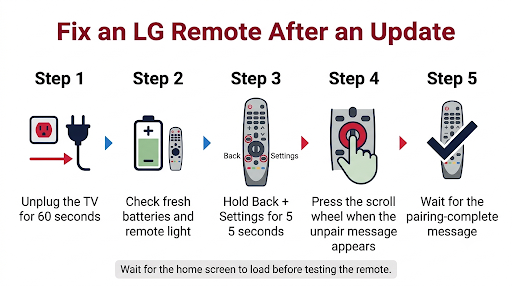
Step A: Unpair (reset) the remote
- Turn on the TV and point the remote directly at it.
- Press and hold BACK and Settings (gear icon) together for at least 5 seconds, which is the reset combination in LG’s official Magic Remote pairing guide. On many older Magic Remotes, HOME + BACK held for 5 seconds also works.
- The LED on the remote blinks and an unpairing message appears on the TV.
Step B: Re-pair the remote
- When the unpairing message appears, press the scroll wheel (OK) button.
- If nothing happens, turn the TV off and on, wait about 20 seconds, point the remote at the screen, and press the scroll wheel again.
- Look for a “pairing complete” or “registration complete” message.
Model-year variations:
- 2021 and 2025 Magic Remotes: If the normal method fails, point the remote at the TV and hold HOME + Settings for at least 5 seconds until on-screen instructions appear.
- 2020 Magic Remotes: Point the remote at the TV and hold the Guide button until instructions appear.
Button labels vary a little by model, so compare against the diagram in your TV’s manual if you can’t find the gear button.
5. Discharge the Remote Itself
If re-pairing fails, the remote may be stuck in a bad state. Clear it:
- Remove the batteries.
- Press and hold the remote’s power button for about 10 to 15 seconds to drain leftover charge.
- Wait 30 seconds, then put the batteries back in.
- Repeat the unpair and re-pair steps above.
6. Clear the TV’s Sensor and Remove Interference
After an update, some TVs re-enable features or change picture settings, but sensors don’t move. Still, it’s worth a quick check because RF and IR problems look identical.
- Make sure a soundbar, decor, or TV stand edge isn’t blocking the receiver at the bottom center of the TV.
- Move USB Wi-Fi dongles, wireless headphone transmitters, and other 2.4 GHz devices away from the TV for a test.
- Turn off nearby fluorescent or “three-wavelength” lamps briefly. LG lists this type of lighting as a known cause of IR interference.
- Test from 3 to 5 feet away, pointing straight at the screen.
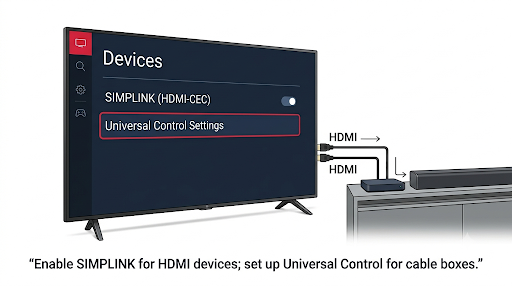
7. Toggle SIMPLINK (HDMI-CEC) Off and On
Use this fix if your LG remote controls the TV but no longer works with a connected device after the update, such as a soundbar, Roku, Fire TV Stick, Apple TV, PlayStation, or cable box.
- Open Settings > All Settings > General > Devices > HDMI Settings. On some models it’s under Connection > HDMI Device Settings.
- Turn SIMPLINK (HDMI-CEC) off.
- Wait about 20 seconds.
- Turn it back on.
- Power cycle the connected device too, and make sure its own CEC setting is still on (Roku calls it 1-touch play, and Apple TV calls it Control TVs and Receivers).
On LG OLED owner forums, one user with a G4 reported that this exact toggle restored the Magic Remote’s power button after a firmware update. It doesn’t work for everyone, but it’s harmless and takes under a minute.
Watch out: HDMI-CEC only works over HDMI. If your soundbar uses an optical cable, SIMPLINK won’t help. You’ll need to set up the soundbar under the TV’s Universal Control or sound output settings instead.
8. Recheck Universal Control for Cable and Satellite Boxes
If the volume works but channel and number buttons stopped working after the update, the TV may have lost its Universal Control setup for your set-top box. LG notes that a remote that isn’t set up correctly for the box will often control volume while ignoring channels and numbers.
Go to Settings > All Settings > General > Devices > Universal Control Settings (the path varies by webOS version) and set up your cable or satellite box again.
9. Use the LG ThinQ App as a Temporary Remote
If the remote is dead and you can’t reach the settings menu, your phone can step in.
- Install the LG ThinQ app on iPhone or Android.
- Connect your phone to the same Wi-Fi network as the TV.
- Add your TV in the app and follow the on-screen code to connect.
- Use the app’s remote screen to open menus, change settings, and check for updates.
Many webOS TVs also accept a plugged-in USB mouse, which can get you past a screen that says “Press OK on your remote.” Support varies by model, so treat it as a backup option.
10. Install the Latest Software Update
If a buggy update caused the problem, LG often ships a follow-up patch. Installing the newest version is frequently the real fix.
- 2020 and newer TVs (webOS 5.0 and later): Settings > All Settings > Support > Software Update > Check for Updates.
- 2019 and older TVs (webOS 4.5 and earlier): Settings > All Settings > General > About This TV > Check for Updates.
To check your webOS version quickly, press the Settings or Mute button three times in a row. LG’s own guide to updating LG TV software also explains how to update with a USB flash drive if your TV isn’t online.
Important: Don’t unplug the TV or turn off your router while an update installs. Interrupting it can cause a system error that’s much harder to fix than a remote problem.
11. Check for Key Lock or Accessibility Settings
If you see a “Key Locked” message, the buttons are disabled on purpose. This sometimes gets triggered by accident during setup after an update. Look under Settings > All Settings > General > Safety or the parental control menu, and turn off the lock. You may need your PIN (often 0000 by default on LG TVs if you never changed it).
12. Factory Reset the TV as a Last Resort
If the remote works with other devices or another LG TV but still won’t work with yours after all of the steps above, a factory reset clears corrupted settings the update left behind.
- Use the ThinQ app or a working remote to open Settings > All Settings > General > System > Reset to Initial Settings (on older models, General > Reset to Initial Settings).
- Confirm and wait for the TV to restart.
- During setup, pair the Magic Remote when the TV asks you to press the scroll wheel.
Know before you reset: You’ll lose your apps, sign-ins, picture settings, and channel scans. Also, some owners on LG’s webOS forum got stuck on the “Press the OK button on your remote” setup screen after a reset because the remote still wouldn’t pair. Try every other fix first, and have the ThinQ app or a USB mouse ready just in case.
What If Only Some Buttons Work After the Update?
Partial failure points to a specific cause. Use this table to narrow it down fast.
| What you see | Most likely cause | What to try |
| Power and volume work, pointer and wheel don’t | Lost RF pairing | Unpair and re-pair (Fix 4) |
| Everything works except the power button | CEC or firmware bug | Toggle SIMPLINK, then install the newest update |
| Pointer shows up but won’t move | Pairing or motion sensor glitch | Re-pair, then see the cursor fix guide below |
| Wheel scrolls but OK click does nothing | Pairing issue or worn wheel | Re-pair, then check the scroll wheel guide |
| Volume works, channels and numbers don’t | Universal Control reset | Set up the cable box again (Fix 8) |
| Remote controls TV but not soundbar or streaming stick | SIMPLINK turned off or glitched | Toggle SIMPLINK on both devices (Fix 7) |
| Only buttons you press hard respond | Worn contacts or weak batteries | New batteries, clean the buttons, or replace the remote |
If your pointer is on screen but frozen, our walkthrough on fixing an LG Magic Remote cursor that’s not moving goes deeper into motion sensor resets. If the pointer keeps vanishing instead, check why the LG Magic Remote pointer disappears. And if the wheel or OK click is the only part acting up, see how to fix an LG Magic Remote scroll wheel that isn’t working.
How Can You Tell If the Remote Is Actually Broken?
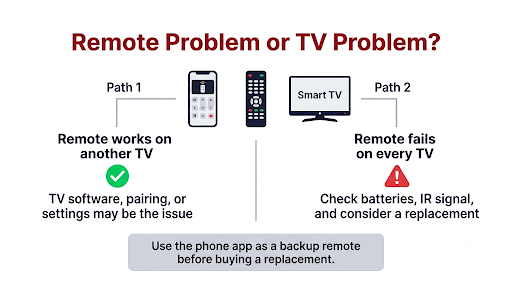
Run this simple test to separate a remote problem from a TV problem:
- Try the remote on another LG TV (a friend’s or a second TV at home). If it pairs and works there, the remote is fine and your TV needs the software or reset fixes.
- Try the ThinQ app on your TV. If the app controls the TV normally, the TV is responding and the remote or its pairing is the issue.
- Check the IR flash with your phone camera. No flash with fresh batteries usually means hardware failure.
If the remote truly failed, buy a replacement that matches your TV’s model year. Magic Remotes are model-specific, so check the compatibility list for your TV model number before you order. A basic universal remote that supports LG works too, but you’ll lose the pointer and voice control.
How Do You Stop a Future Update From Breaking the Remote?
You can’t fully prevent it, but you can lower the risk and recover faster:
- Keep fresh batteries in the remote so a post-update re-handshake doesn’t fail.
- Install the ThinQ app now, while everything works, so you’re never locked out.
- Let updates finish fully. After an update, turn the TV off for about 10 seconds and back on, as LG recommends, so the install completes properly.
- Turn off automatic updates if you’d rather wait a few days and see whether other owners report problems with a new version. You can update manually under Support > Software Update.
Frequently Asked Questions
Why is my LG remote’s pointer gone after the update?
The pointer depends on the RF pairing between the Magic Remote and the TV. When an update resets that link, the pointer disappears even though IR buttons like power may still work. Shake the remote or press the scroll wheel first. If the pointer doesn’t return, unpair and re-pair the remote.
Can I roll back an LG TV software update?
Not officially. LG doesn’t offer a way for owners to downgrade webOS firmware from the settings menu. Your best options are waiting for the next patch, installing it as soon as it’s out, or contacting LG support if the problem is widespread for your model.
Why does my LG remote work after unplugging the TV, then stop again later?
That pattern usually points to a firmware bug rather than the remote. The power drain clears the glitch temporarily, but it comes back. Check for a newer update, and if none is available, report the issue to LG with your model number and software version so they can track it.
My LG TV says “Press the OK button on your remote” but the remote won’t work. What now?
Unplug the TV for a full minute, then hold the Magic Remote close to the screen and press the scroll wheel once the message appears. If it still won’t register, try a USB mouse in the TV’s USB port, which works on many webOS models, or a different Magic Remote that matches your TV’s year.
Does the LG TV update affect old non-smart LG remotes?
Standard IR remotes don’t pair, so an update can’t unpair them. If one stops working after an update, the cause is usually weak batteries, a blocked IR sensor, or a glitch that a full power drain clears. A changed setting like Key Lock is also possible.
Is a software update covered by LG warranty if it breaks my remote?
If your TV is still under warranty and the problem continues after a reset and the latest update, contact LG support. They can troubleshoot remotely or arrange service. Out-of-warranty service may carry a fee, so ask about cost before booking a technician.
Final Recommendation
Start with the two fixes that solve the most cases: unplug the TV for 60 seconds, then unpair and re-pair the Magic Remote. If the remote works with the TV but not your soundbar or streaming device, toggle SIMPLINK. If the problem keeps coming back, install the newest software update using the ThinQ app as your backup remote. Save the factory reset for last, and if a remote still won’t work on any LG TV with fresh batteries, it’s time for a replacement that matches your TV’s model year.